
Dzine AI Review: Revolutionize Your Design Workflow with AI Efficiency
Dzine AI Review – As someone who studied graphic design and spent countless hours mastering the intricate tools of Photoshop, I know firsthand how steep the learning curve can be. While Photoshop is undeniably powerful, achieving professional-quality results often demands a significant investment of time, patience, and meticulous effort.
That’s why discovering Dzine AI has been an absolute game-changer for me. Dzine AI streamlines the design process by automating repetitive tasks and simplifying creation, enabling even beginners to produce stunning, high-quality visuals in just seconds.
Packed with intuitive features, Dzine AI helps you complete creative tasks up to 10x faster. Whether you’re a seasoned graphic designer fine-tuning your workflow or a small business owner looking to elevate your brand, Dzine provides all the tools you need to make designing easier and more efficient.
Gone are the days of spending hours fine-tuning images by hand or feeling stuck searching for inspiration. Dzine combines the power of artificial intelligence with user-friendly controls to deliver professional-grade results effortlessly. From eye-catching social media posts to sharp product photos or even a brand-new logo, Dzine has something to offer for every creative project.
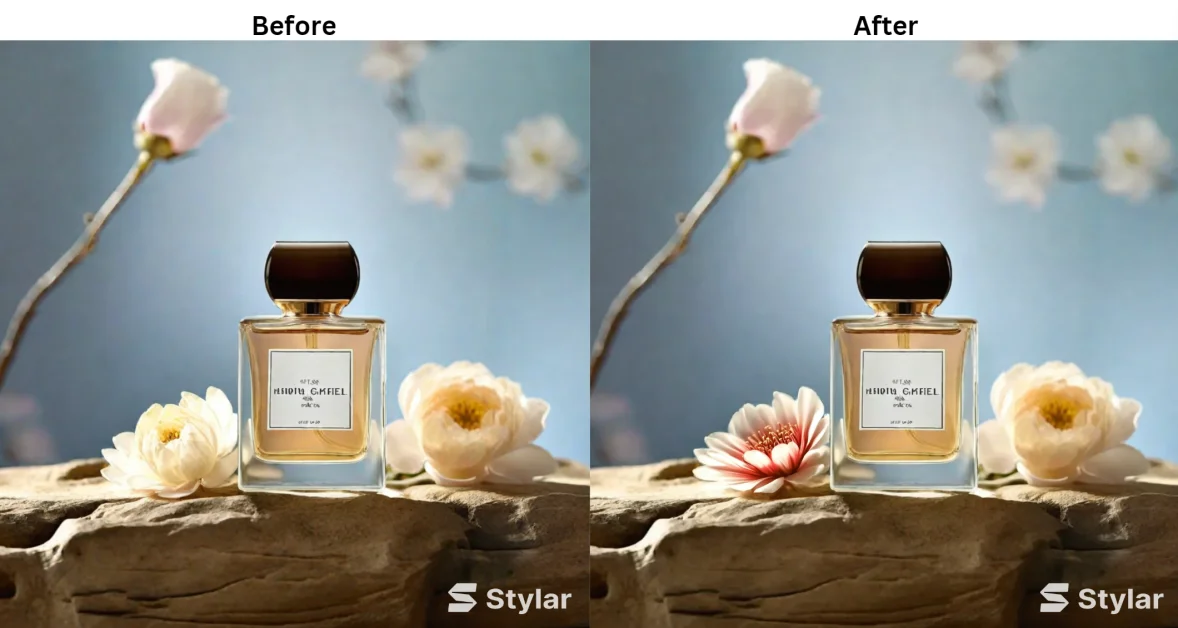
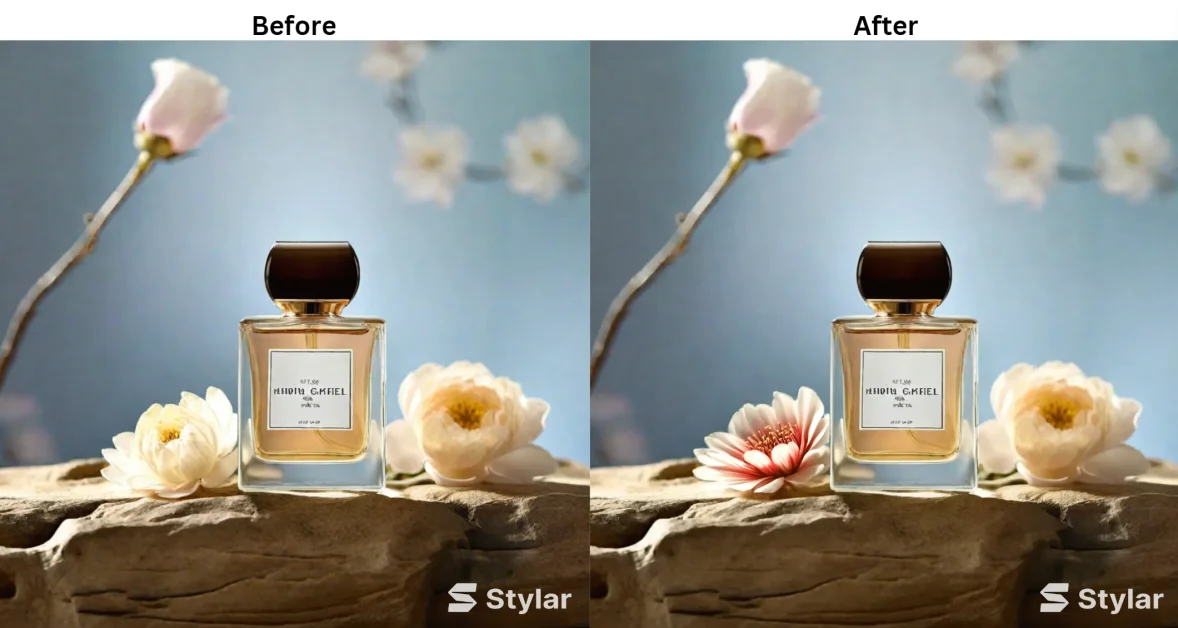
For example, I recently used Dzine’s Text-to-Image feature to generate an image in mere seconds. With just a few clicks, I swapped a white flower for a vibrant red one—an edit that would have taken far longer using traditional tools!
With Dzine AI, designing isn’t just faster—it’s smarter, simpler, and more accessible to everyone.
🎉 Transform your design process today! Check out Dzine AI and unleash your creativity! 🌈✨
What is Dzine?
Dzine is an all-in-one design and image creation tool powered by generative AI that drastically reduces repetitive tasks. It’s packed with cutting-edge features anyone can use, such as turning text into images or transforming flat 2D designs into stunning 3D models. Additionally, it offers user-friendly editing tools like the AI Photo Filter to experiment with various styles, an Object Remover for seamless edits, and much more. With Dzine, creating professional-quality designs and images becomes instant and effortless!
The versatility of Dzine is incredible, with applications ranging from character design, print-on-demand products, and product photography to game asset creation, interior design, and marketing materials. For example, you can upload a simple 2D character sketch, and Dzine will instantly transform it into a 3D model! When I used its Text-to-Image tool for product photography, I was amazed by the photo’s precision and quality—it felt like a professional studio-level result in seconds.
Whether you’re a graphic designer sketching concepts, a photographer looking to make quick edits, or a business owner aiming to save on outsourcing design work, Dzine has the tools to make your creative process smoother, faster, and more efficient. With Dzine, you can get more done in less time while achieving outstanding results!
Who is Dzine Best For?
Dzine is a powerful tool designed to save time and effort for both individual users and large-scale businesses by automating repetitive creative tasks and boosting productivity by up to 10x. While Dzine is versatile, there are specific groups of people who can benefit the most from its features:
1. Graphic Designers
Dzine is a game-changer for graphic designers, helping them automate tedious tasks and focus more on their creativity. Its seamless integration of artificial intelligence simplifies complex workflows, enabling designers to produce professional-grade work quickly.
- Key Benefits:
- Generate original, high-quality images from simple text prompts.
- Instantly transform flat designs or logos into 3D models with just a few clicks.
- Experiment with styles and filters to elevate creative projects.
- Save time on repetitive tasks like resizing, background removal, and more.
By handling the technical details, Dzine allows designers to channel their energy into creating innovative and impactful designs.
2. Photographers
For photographers, Dzine makes editing faster and smarter, eliminating the need for manual, time-consuming adjustments.
- Key Benefits:
- Use the Object Remover to delete unwanted elements seamlessly.
- Experiment with AI-powered filters to apply creative styles effortlessly.
- Replace backgrounds or tweak lighting for a polished, professional look.
- Streamline the entire photo-editing workflow to save hours of work.
Whether you’re editing portraits, landscapes, or product shots, Dzine empowers photographers to achieve high-quality results in a fraction of the time.
3. Social Media Influencers and Digital Marketers
Social media content thrives on visually engaging designs—and Dzine is perfect for creating attention-grabbing visuals that stand out online.
- Key Benefits:
- Generate eye-catching visuals for promotional campaigns.
- Quickly transform mundane images into dynamic, scroll-stopping content.
- Design professional-grade social media posts without needing advanced design skills.
- Customize visuals to match your brand aesthetic consistently.
For influencers looking to amplify their online presence or marketers aiming for better engagement, Dzine makes creating impactful visuals easy and efficient.
4. Businesses and Agencies
Dzine is an invaluable tool for businesses and agencies looking to save on outsourcing costs while maintaining professional-quality designs.
- Key Benefits:
- Quickly produce social media graphics, logos, product photos, and more.
- Create polished marketing materials in-house, reducing reliance on external designers.
- Improve brand consistency by having all tools in one place.
- Save time and money while maintaining creative control.
From startups to large enterprises, Dzine helps businesses produce professional visuals without needing a full design team.
5. Artists
For artists, Dzine opens up exciting opportunities to explore new creative possibilities and enhance their workflow.
- Key Benefits:
- Generate unique artwork from text descriptions with the Text-to-Image tool.
- Turn traditional sketches into polished, digital masterpieces instantly.
- Experiment with different styles, colors, and textures to evolve their art.
- Create 3D versions of 2D sketches for new dimensions of creativity.
Dzine serves as a versatile platform for artists to push their creative boundaries and bring their visions to life.
6. Interior Designers
Interior designers can leverage Dzine’s capabilities for faster concept visualization and enhanced presentations.
- Key Benefits:
- Upload rough sketches and generate 3D room renderings instantly.
- Experiment with color palettes, furniture arrangements, and layouts in real-time.
- Save time by creating multiple design iterations for client presentations.
- Easily transform ideas into realistic visualizations to bring concepts to life.
Dzine helps interior designers explore creative possibilities while streamlining the design process.
7. Marketers
Marketers can use Dzine to elevate their campaigns by creating professional-quality visuals and advertising materials.
- Key Benefits:
- Enhance images for promotional use, such as social media ads or email campaigns.
- Transform logos from 2D to 3D for a more dynamic and modern aesthetic.
- Produce engaging visuals for presentations, websites, and other marketing platforms.
- Save time on revisions and edits with intuitive AI-powered tools.
With Dzine, marketers can boost the effectiveness of their advertising efforts and create consistent, impactful designs with ease.
🔍 Curious about AI design tools? Dive into Dzine AI and find out how it can enhance your workflow! 💻✨
Dzine Features
Dzine offers an impressive array of features tailored for graphic designers, photographers, marketers, and creators to streamline workflows and unlock creativity. Below is a detailed breakdown of Dzine’s features and how they can be used effectively:
1. AI Photo Filter
- What It Does: Transform your photos into stunning artwork with a variety of styles.
- How to Use:
- Upload a photo.
- Choose a style (e.g., artistic, vintage, modern).
- Adjust sliders to customize the final look.
- Applications:
- Turn travel photos into artistic masterpieces.
- Add creative flair to personal or professional photo projects.
2. 2D to 3D Converter
- What It Does: Instantly convert 2D designs or logos into eye-catching 3D models.
- How to Use:
- Upload a 2D image or artwork.
- Select a 3D effect (e.g., embossed, cartoon, or metallic).
- Applications:
- Create 3D versions of logos for branding.
- Explore unique design variations for digital assets.
3. AI Design Sketch
- What It Does: Converts sketches into high-quality renderings in various styles.
- How to Use:
- Upload a hand-drawn or digital sketch.
- Choose a rendering style.
- Refine and customize the result.
- Applications:
- Bring interior design, fashion, or product concepts to life.
- Quickly visualize design ideas for presentations or clients.
4. Image to Prompt
- What It Does: Generates a descriptive text prompt based on a photo you upload.
- How to Use:
- Upload a photo.
- Select “Auto Prompt” to generate a written description.
- Tailor the prompt to your needs.
- Applications:
- Explore creative styles for images.
- Use the generated prompt to refine designs or inspire new ideas.
5. AI Style Transfer
- What It Does: Applies artistic styles to photos, turning them into digital art.
- How to Use:
- Upload an image.
- Select a style (e.g., painting, sketch, or abstract).
- Adjust settings to modify the final output.
- Applications:
- Turn photos into paintings or 3D visuals.
- Create unique, custom gifts or merchandise.
6. Turn Sketch to Art
- What It Does: Transforms hand-drawn sketches into polished artwork.
- How to Use:
- Upload a sketch.
- Select the “Image to Image” feature and choose a style.
- Applications:
- Create digital art from traditional sketches.
- Visualize designs for home decor, custom gifts, or branding projects.
7. AI Anime Filter
- What It Does: Converts photos into anime-style artwork.
- How to Use:
- Upload a photo (e.g., a pet or portrait).
- Select an anime-inspired filter.
- Applications:
- Create fun, anime-style versions of self-portraits or pet photos.
- Generate custom anime avatars for social media.
8. AI Image Editor
- What It Does: Provides powerful AI tools to add, remove, or modify image elements seamlessly.
- How to Use:
- Upload a photo.
- Use tools to add objects, replace backgrounds, or remove clutter.
- Applications:
- Edit product photos for e-commerce.
- Experiment with new photo styles or settings.
9. Add Object into Image
- What It Does: Add new elements to your images using prompts.
- How to Use:
- Upload an image.
- Highlight the area to modify and write a prompt.
- Applications:
- Replace clothing on models.
- Add unique elements to product photos or landscapes.
10. Remove Object from Image
- What It Does: Erases unwanted objects, distractions, or watermarks from photos.
- How to Use:
- Upload a photo.
- Highlight the element to remove.
- Applications:
- Clean up cluttered photos.
- Remove watermarks for polished visuals.
11. Remove Background
- What It Does: Instantly removes or replaces photo backgrounds.
- How to Use:
- Upload a photo.
- Click “Remove BG” and replace it with a solid color, transparency, or AI-generated background.
- Applications:
- Prepare professional product photos.
- Customize backgrounds for social media posts.
12. AI Combine Images
- What It Does: Merges multiple photos into a single cohesive design.
- How to Use:
- Upload multiple photos.
- Position and merge them with a selected style.
- Applications:
- Create seamless collages or concept boards.
- Combine text and images for marketing materials.
13. AI Photo Enhancer
- What It Does: Enhances blurry or low-quality photos with improved detail.
- How to Use:
- Upload a photo.
- Use the “Enhance” toggle to adjust the level of detail.
- Applications:
- Restore old photographs.
- Sharpen product images for e-commerce.
14. AI Photo Expand
- What It Does: Resizes images to fit custom dimensions without losing quality.
- How to Use:
- Upload a photo.
- Resize the image to your desired aspect ratio.
- Applications:
- Reformat images for social media.
- Expand cropping to add context or fit dimensions.
15. AI Art Generator
- What It Does: Generates original artwork based on text descriptions.
- How to Use:
- Enter a prompt describing your ideal image.
- Apply filters and effects to refine the result.
- Applications:
- Design dream characters or product visuals.
- Merge art styles for unique results.
16. Free Stable Diffusion 3
- What It Does: Generates highly detailed images using the Stable Diffusion 3 model.
- How to Use:
- Write a creative prompt.
- Choose the SD3 model and generate the image.
- Applications:
- Explore imaginative ideas with precision.
- Generate rich, detailed concepts for creative projects.
17. AI Character Generator
- What It Does: Creates custom characters from text prompts or photos.
- How to Use:
- Describe your character.
- Choose a style and generate!
- Applications:
- Design game characters, anime personas, or avatars.
- Add creative elements to branding or storytelling.
18. AI Logo Generator
- What It Does: Designs logos based on text descriptions or uploaded sketches.
- How to Use:
- Describe your logo idea or upload a draft.
- Select a style and refine the design.
- Applications:
- Create logos for businesses or personal projects.
- Convert 2D logos into 3D versions for added depth.
✨ Say goodbye to complicated software! Learn how Dzine AI can simplify your design process! 📈🌟
How to Use Dzine to Generate Images
Here’s how easy it was for me to generate images with Dzine . I’ll even show you how to use the editing tools!
- Sign Up for Dzine
- Select Text-to-Image
- Choose a Style
- Write a Prompt
- Optionally Write a Negative Prompt
- Select the Aspect Ratio
- Generate Images
- Make Edits
Step 1: Sign Up for Dzine
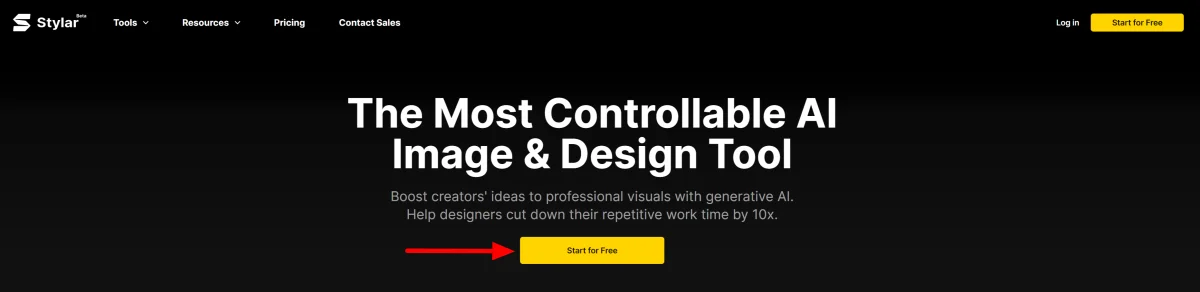
I began by visiting the homepage and clicking on “Start for Free.”
Once I signed up using my email, I was directed to the dashboard! Plus, I received 100 credits to explore and try out Dzine’s impressive tools.
Step 2: Select Text-to-Image
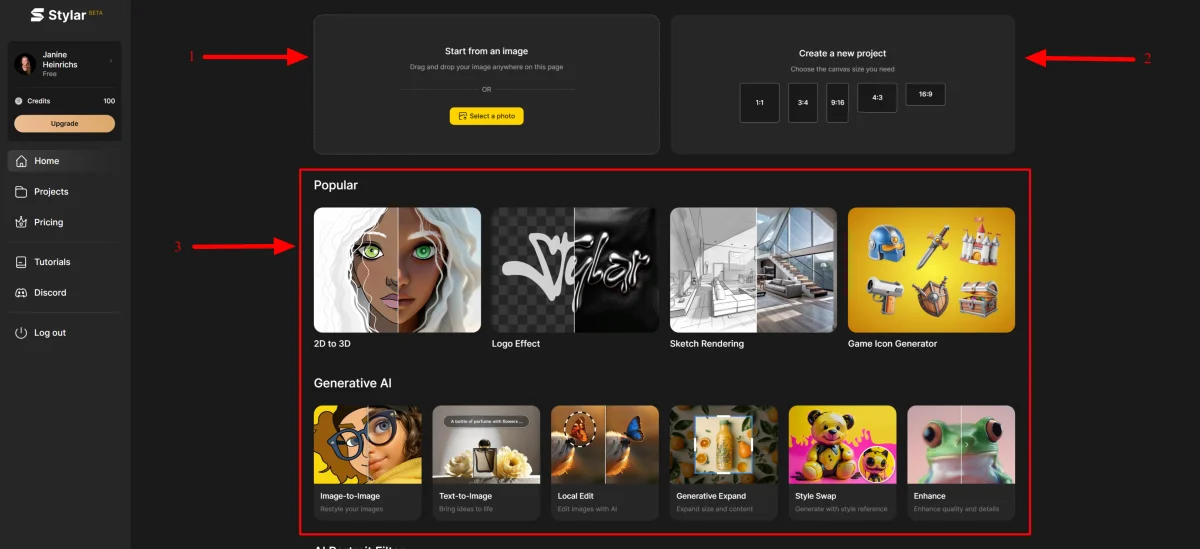
The dashboard was user-friendly and intuitive. Dzine offered me the option to start with an existing image, create a new project by selecting a size, or choose a specific tool.
I was particularly intrigued by Dzine’s Text-to-Image tool, so I decided to give it a try.
Step 3: Choose a Style
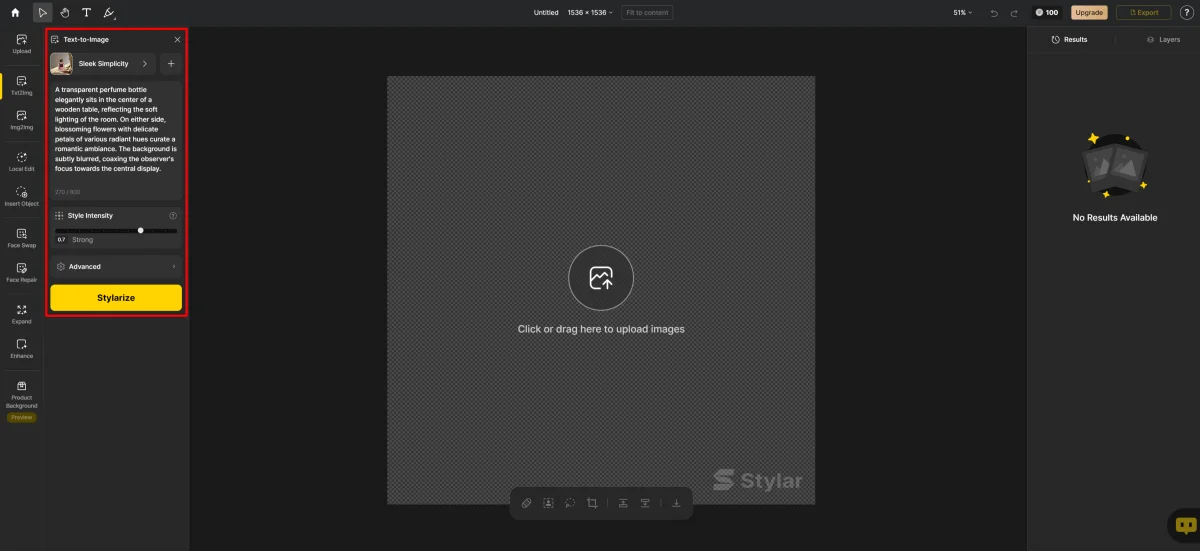
Choosing Dzine’s Text-to-Image tool brought me to the canvas. From there, I could either click or drag to upload an image for applying styles and edits, or I could let Dzine generate an image for me. Curious to see what Dzine could create, I navigated to the Text-to-Image panel on the left!
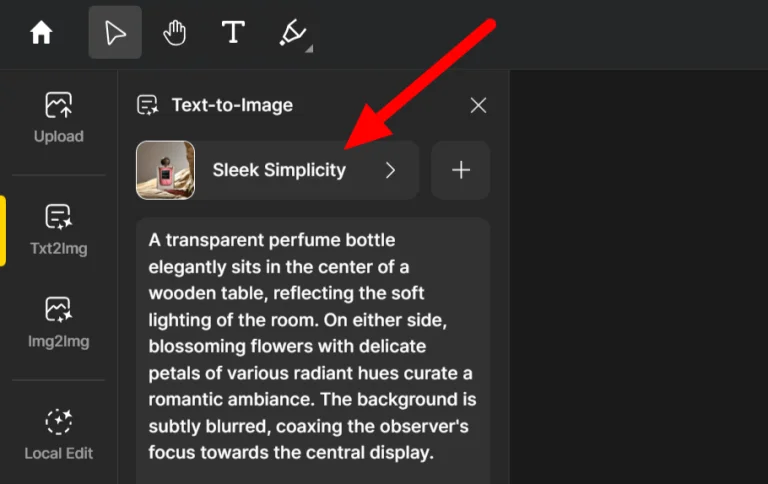
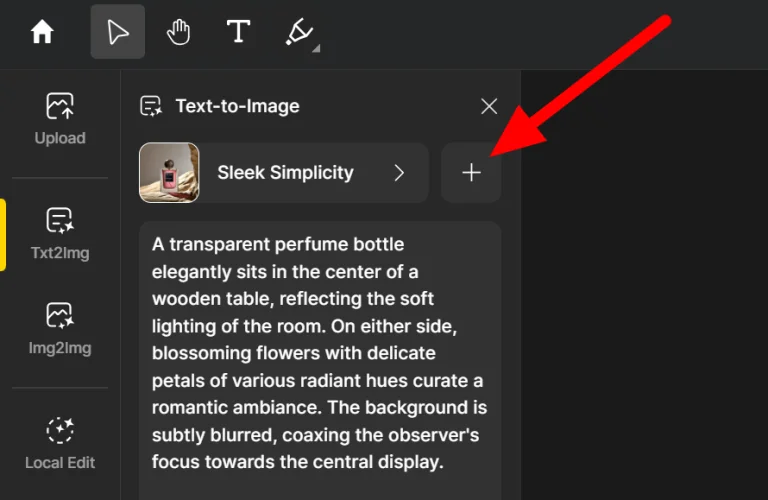
Step 4: Write a Prompt
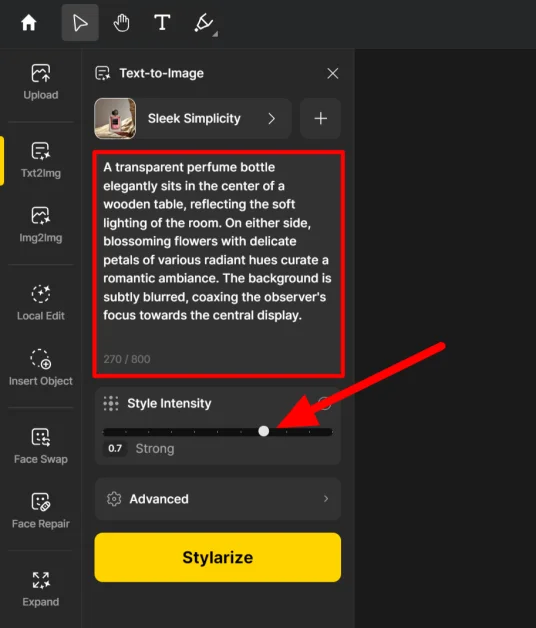
Below the style options was the description that Dzine automatically generated for me. I decided to keep it as is, but you can write a descriptive prompt that aligns with your creative vision. Just remember that the description cannot exceed 800 characters in length.
Underneath that, there was the Style Intensity setting. I left this on the default to check the results, but feel free to experiment with this toggle to adjust the intensity of the style in your outcomes!
Step 5: Optionally Write a Negative Prompt
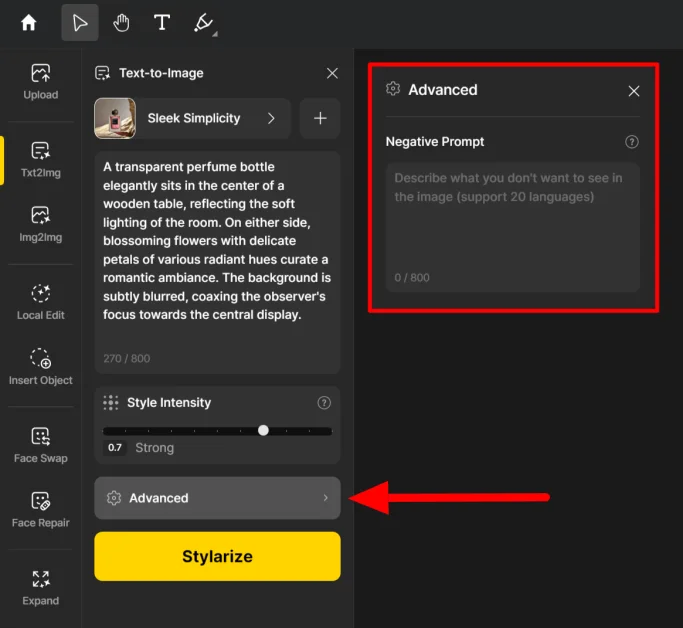
Next came the “Advanced” option, which opened a new window where I could input a negative prompt to specify what I didn’t want to appear in my generated images. I left this blank, but make sure to utilize this feature if your images start including elements you’re not fond of!
Step 6: Select the Aspect Ratio
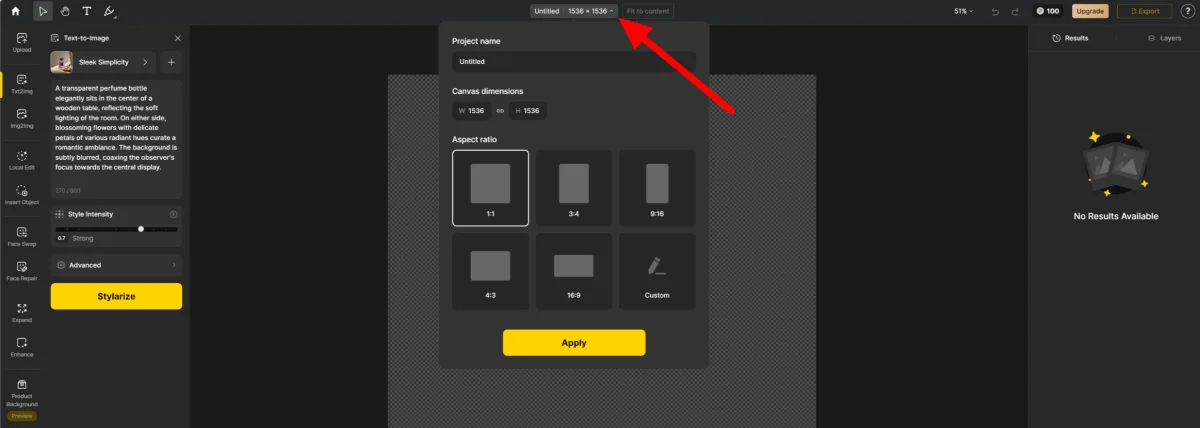
Before generating my image, I clicked on “Untitled” at the top of the canvas to name my project and set the canvas dimensions for different mediums. I kept everything on default, but make sure to choose a name that reflects your creation and select the appropriate aspect ratio.
Dzine provides the most common aspect ratios, which are ideal for social media. However, if none of these ratios suit your needs, you can select “Custom” to define your own dimensions.
Step 7: Generate Images
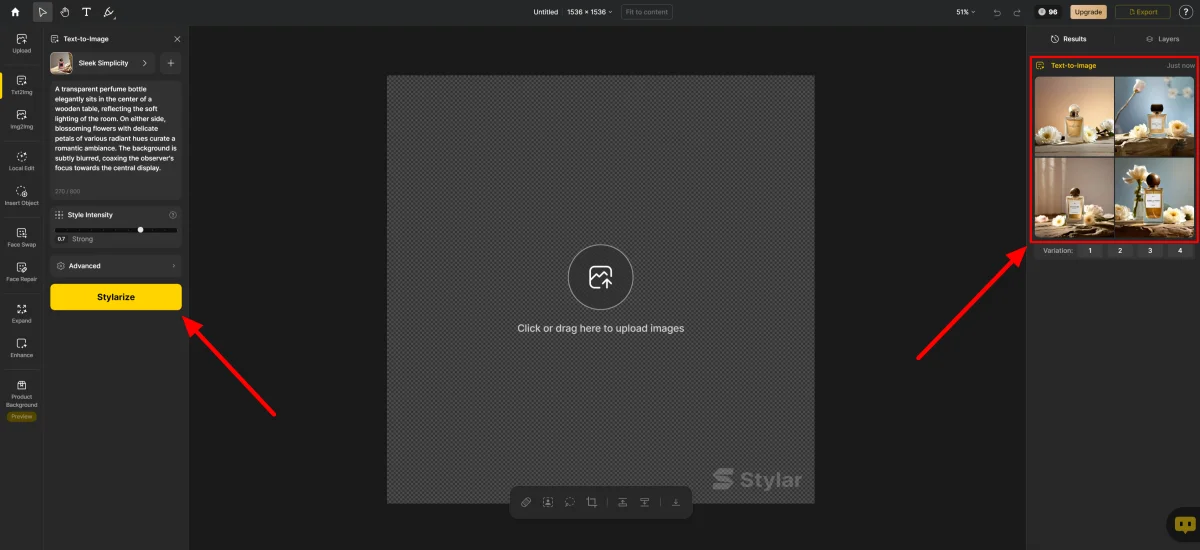
It was time to generate my images! I clicked the big yellow “Stylarize” button, and within seconds, Dzine produced my images, which appeared in the right panel.
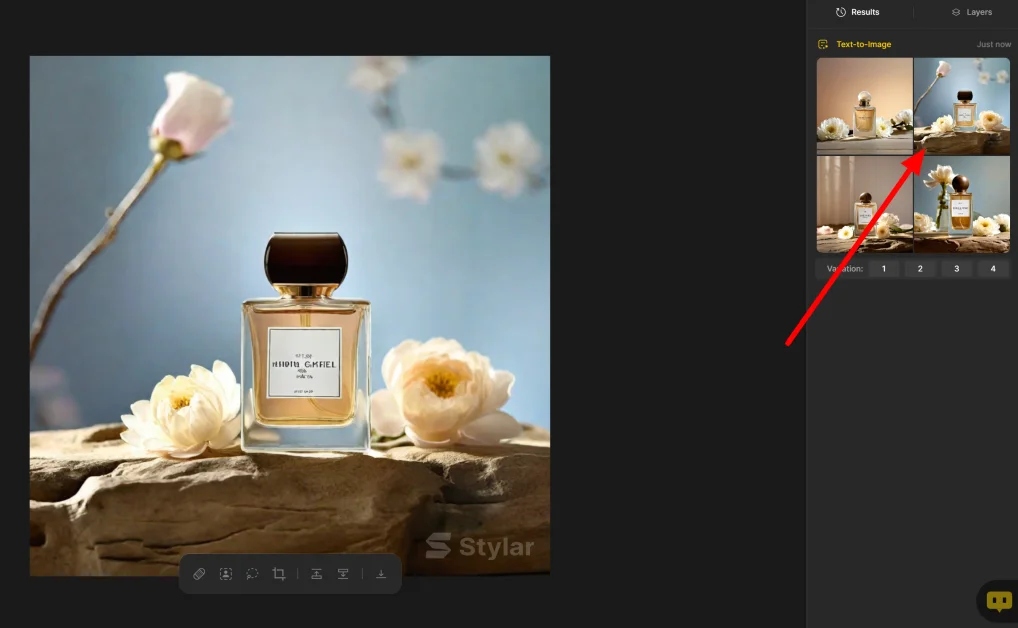
The results amazed me! All four images looked incredibly realistic. I double-clicked the one I liked best and added it to my canvas
Step 8: Make Edits
This photo looks fantastic, but I wanted to enhance it further by exploring some of Dzine’s AI editing tools. I was curious to see if I could change the color of one of the flowers!
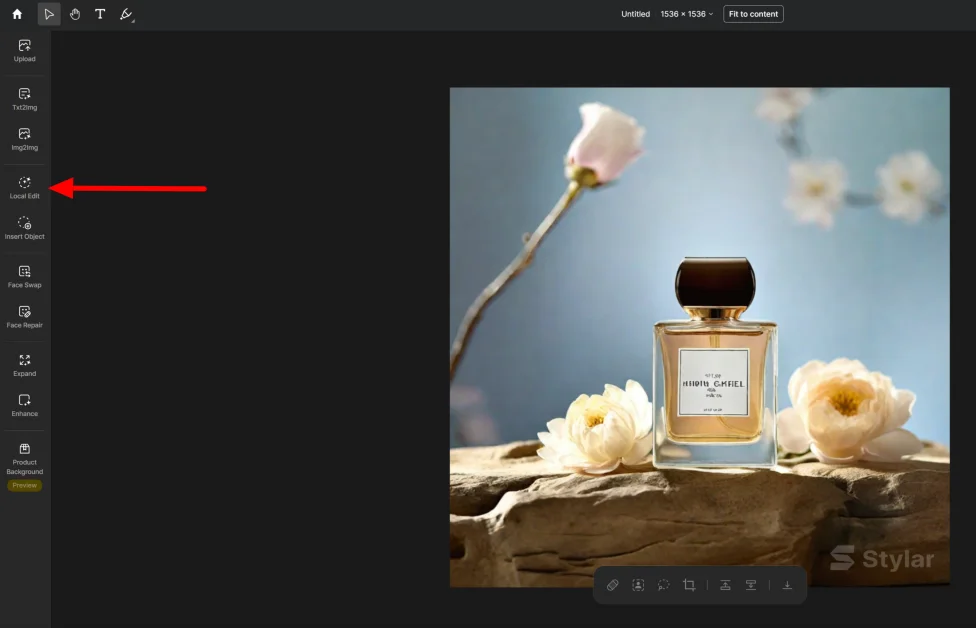
All of my AI image editing tools were located on the left navigation bar. I selected the “Local Edit” tool to modify an element in my photo.

At the bottom of the canvas, there were several tool options: Lasso, Brush, and Auto. As someone with experience using Photoshop, all these tools felt quite familiar!
I chose the “Auto” tool and clicked on the flower I wanted to change.
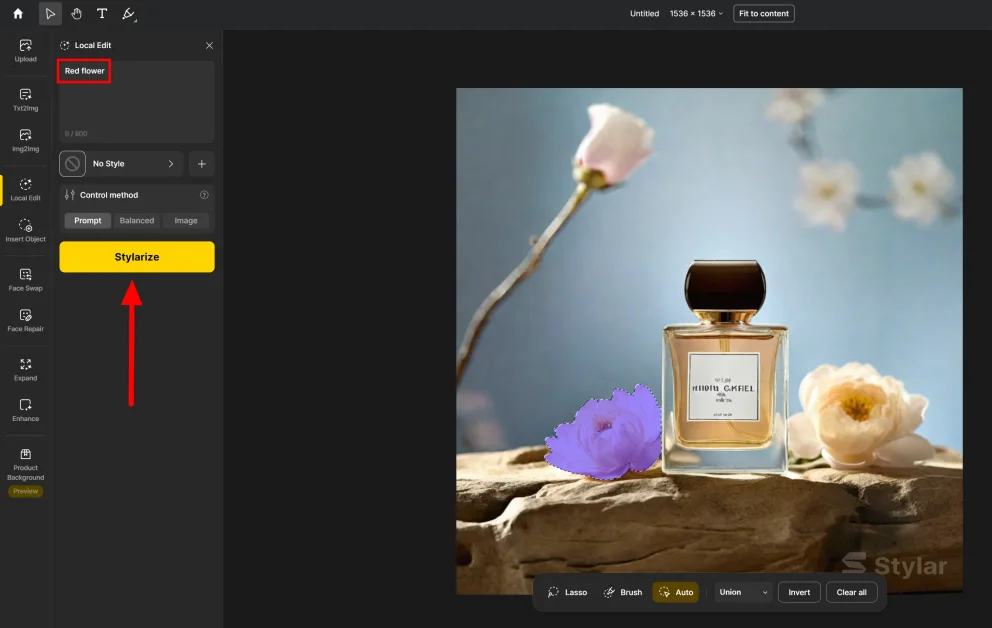
Next, in the Prompt field, I described what I wanted Dzine to do. I wrote “Red flower” as my description, kept everything on default, and selected “Stylarize.”
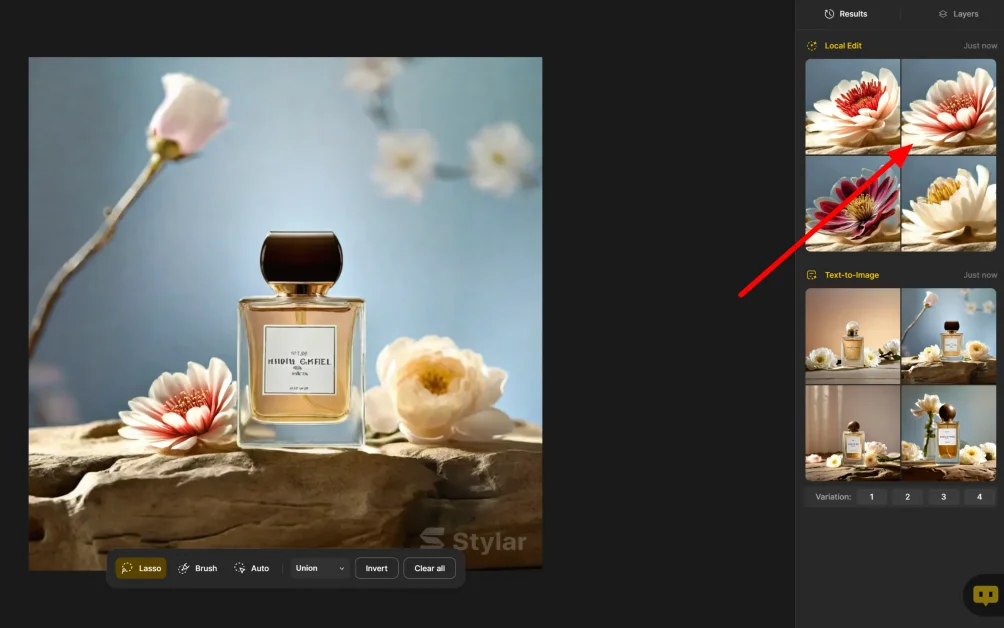
Seconds later, Dzine produced four variations of red flowers in the right panel! I double-clicked on the one I liked best to replace the original, and I was impressed by its authenticity. Dzine preserved the image resolution and only altered the element I requested.
🔥 Join the AI design revolution! Check out Dzine AI and see what the buzz is all about! 🎉💻
Pros and Cons
PROS
- Quickly generate professional, eye-catching images:
Dzine allows users to create stunning visuals in seconds, eliminating the time and effort required for manual design processes. - Streamlines repetitive creative tasks:
With Dzine’s tools, you can automate tedious design tasks, accelerating your workflow and allowing you to focus on creativity rather than repetitive edits. - User-friendly interface:
The platform is designed with ease of use in mind, making navigation intuitive and the overall user experience smooth and enjoyable. - Accessible for all skill levels:
Whether you’re a seasoned designer or a complete beginner, Dzine’s tools are simple and straightforward, minimizing the learning curve. - High-quality image results:
Dzine consistently delivers sharp, professional-grade images that meet the demands of both personal and commercial projects. - Powerful AI editing tools:
The platform offers a variety of user-friendly editing options, such as local edits and automatic adjustments, simplifying the photo editing process significantly. - Time-saving and precise AI tools:
Dzine’s AI tools are not only fast but also highly accurate, ensuring your edits are seamless and meet your expectations. - Access to a vast library of styles:
With an extensive collection of design styles and templates, users can create diverse visuals tailored to their specific needs and preferences. - Support and learning resources:
Dzine provides plenty of resources, including YouTube tutorials, Discord communities, and documentation, to help users get the most out of the platform. - Batch processing on paid plans:
For professionals handling bulk tasks, Dzine offers batch job options to streamline large-scale projects efficiently. - Generous free plan:
New users receive 100 free credits upon signing up, allowing them to explore all of Dzine’s tools without any upfront cost.
CONS
- Overwhelming for new users:
While the platform is feature-rich, the sheer number of tools available might feel daunting for those who are new to AI design or editing software. - Watermarked outputs on the free plan:
Images generated using the free plan include a watermark, which can limit their use for professional projects unless you upgrade to a paid subscription. - No prompt crafting assistant:
Dzine currently lacks a prompt helper or guide to assist users in creating better text prompts, which could improve the quality and relevance of generated results.
Overall Experience
Overall, my experience with Dzine was outstanding. The interface was easy to navigate, and the tools were straightforward to use.
Creating an account was quick, and I received 100 credits just for signing up! The tools were clearly laid out on the dashboard, making it simple to locate the Text-to-Image tool.
Dzine excelled in generating a high-quality photo of a perfume bottle, and the editing capabilities were even more impressive! With a single click, I highlighted a flower in the image, provided a text prompt, and instantly generated four red flower variations that blended perfectly into the photo.
The Text-to-Image and AI editing tools are a game-changer for creatives. In my experience, Dzine stands out as the best all-in-one AI image generator and editing tool compared to other AI art generators I’ve tried!
If you’re a photographer, business owner, or designer looking to create quick, high-quality image generations and edits with AI, Dzine is the top choice! For additional features like turning images into short videos, manipulating character poses, generating music, and creating stunning art, consider alternatives such as GetIMG, ArtSmart, and LimeWire.
Thank you for reading my Dzine review! I aimed to present everything concisely and honestly, so I hope you found it helpful. With 100 free credits for creating an account, why not give Dzine a try for yourself?
Verdict
Dzine is an innovative and user-friendly platform that simplifies the design process with its powerful image generation and photo editing capabilities. Whether you’re a beginner or a seasoned creative professional, Dzine’s tools cater to all experience levels, making it an excellent choice for photographers, designers, and business owners alike.
One of Dzine’s standout features is its ability to seamlessly blend advanced AI functionalities—such as Text-to-Image generation and local edits—while maintaining an intuitive interface. The platform enables users to produce high-quality designs and photo edits efficiently, eliminating the steep learning curve often associated with professional design software.
That said, there are a few considerations to keep in mind. New users may initially find the extensive range of tools a bit overwhelming, as Dzine offers a wide variety of features that might feel daunting without prior experience. Additionally, images generated under the free plan come with a watermark, which could be a limitation for some users looking for polished, commercial-ready designs without opting for a paid subscription.
Despite these minor drawbacks, Dzine remains an exceptional solution for anyone looking to enhance their creative workflow. Its robust editing options, fast processing, and versatility make it a game-changing tool for creatives and businesses alike!